VoltageOS · Miatoll
Voltage OS
Flashing Guide
Your complete guide to installing VoltageOS on your Redmi Note 9S / 9 Pro / 9 Pro Max / 10 Lite / Poco M2 Pro.
Redmi Note 9S
Redmi Note 9 Pro
Redmi Note 9 Pro Max
Redmi Note 10 Lite
Poco M2 Pro
Flashing Recovery
Downloads
Steps
1
Reboot to Fastboot mode by holding:
Vol Down
+
Power
Hold until the fastboot logo appears
2
Connect to PC and flash recovery:
For OFOX, extract recovery.img from the zip first
fastboot flash recovery recovery.imgYou can also flash recovery from within an existing one via SD card
3
Reboot to Recovery mode:
Vol Up
+
Power
Hold until the recovery screen appears
Flashing Firmware
Download the latest regional firmware from XMFirmwareUpdater.
Using Recovery
1
In recovery, select the firmware file and flash it
2
Flashing firmware is not necessary every time — only when updating Android versions or troubleshooting
Flashing ROM
Clean Flash — Vanilla
ADB Sideload
1
Select Format Data
2
Select ADB Sideload → Swipe to enable
3
On your PC:
adb sideload rom.zip4
Select Format Data/Factory Reset
5
Select Reboot to System
SD Card / OTG
1
Select Format Data
2
Select ROM file → Swipe to flash
3
Select Format Data/Factory Reset
4
Select Reboot to System
Clean Flash — Sandbox GApps
Follow Clean Flash (Vanilla) steps above, then continue:
1
After rebooting, download and install the
GrapheneOS App Store
2
Open the App Store and install:
Google Play Services
Services Framework
Google Play Store
3
For Google Contacts sync issues: give Contacts permission to Play Services and reboot
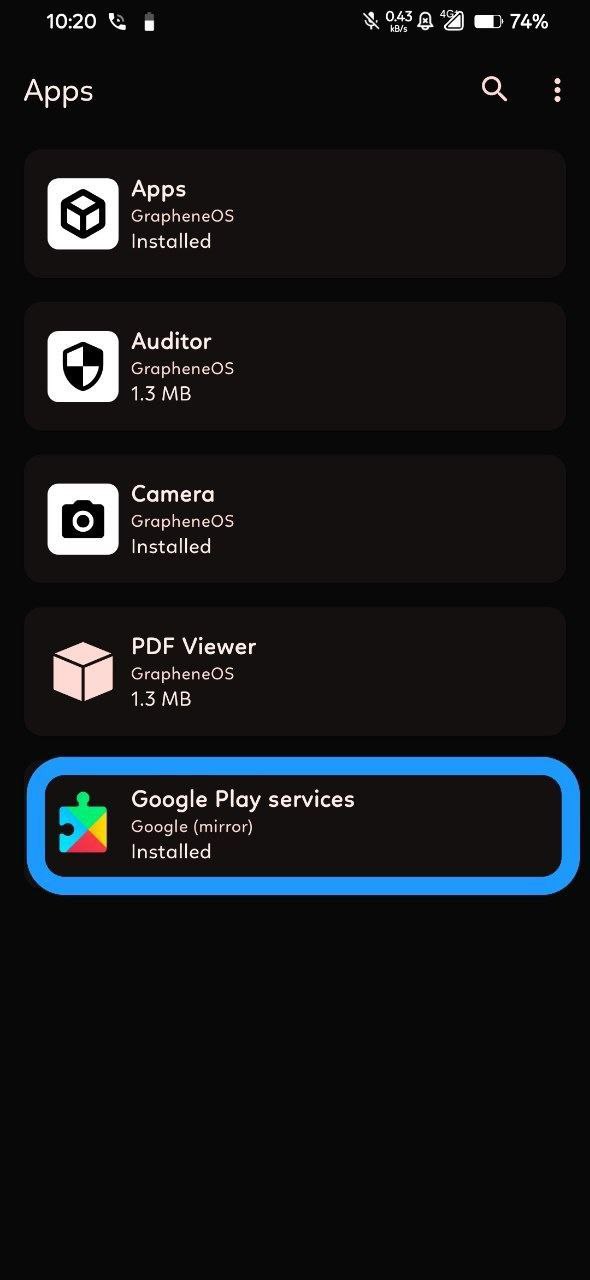
For more on Sandboxed Google Play, read the official documentation.
For potential fixes and workarounds, check this VoltageOS support post.
Clean Flash — Normal GApps
ADB Sideload
1
Select Format Data
2
Select ADB Sideload → Swipe to enable
3
Sideload ROM:
adb sideload rom.zip4
DO NOT REBOOT. Select ADB Sideload again
5
Sideload GApps:
adb sideload gapps.zip6
Select Factory Reset
7
Select Reboot System Now
SD Card / OTG
1
Select Format Data
2
Select ROM file → Swipe to flash
3
Select GApps file → Swipe to flash
4
Select Format Data/Factory Reset
5
Select Reboot to System
Updating ROM
Dirty Flash
1
Select ADB Sideload → Swipe to enable
2
Sideload the new ROM:
adb sideload rom.zip3
If no GApps, select Reboot System Now
If you previously flashed GApps
- DO NOT REBOOT. Select ADB Sideload again
- Sideload GApps zip
- Select Reboot System Now
Through OTA
1
Go to Settings → System → System updates
2
Download the latest available build
3
Tap Reboot once the download completes
4
Device will automatically update and reboot
Via Storage / OTG
1
Download the latest build to storage
2
Reboot to Recovery
3
Select ROM file → Swipe to flash
4
If GApps were previously flashed, flash them again
5
Wipe Cache
6
Reboot to system